
The Laser247 login is the same set of credentials whether you sign in on a browser or on the app. One username, one password, one account, used across every device you choose.
If your account is new, you signed in for the first time the moment the WhatsApp agent sent your temporary password. If your account is older, you have done this hundreds of times. Either way, the page you log into is the live exchange, your wallet, your bet history, and your support thread, all behind one lock. Open the Laser247 homepage and the Login button is in the top corner.
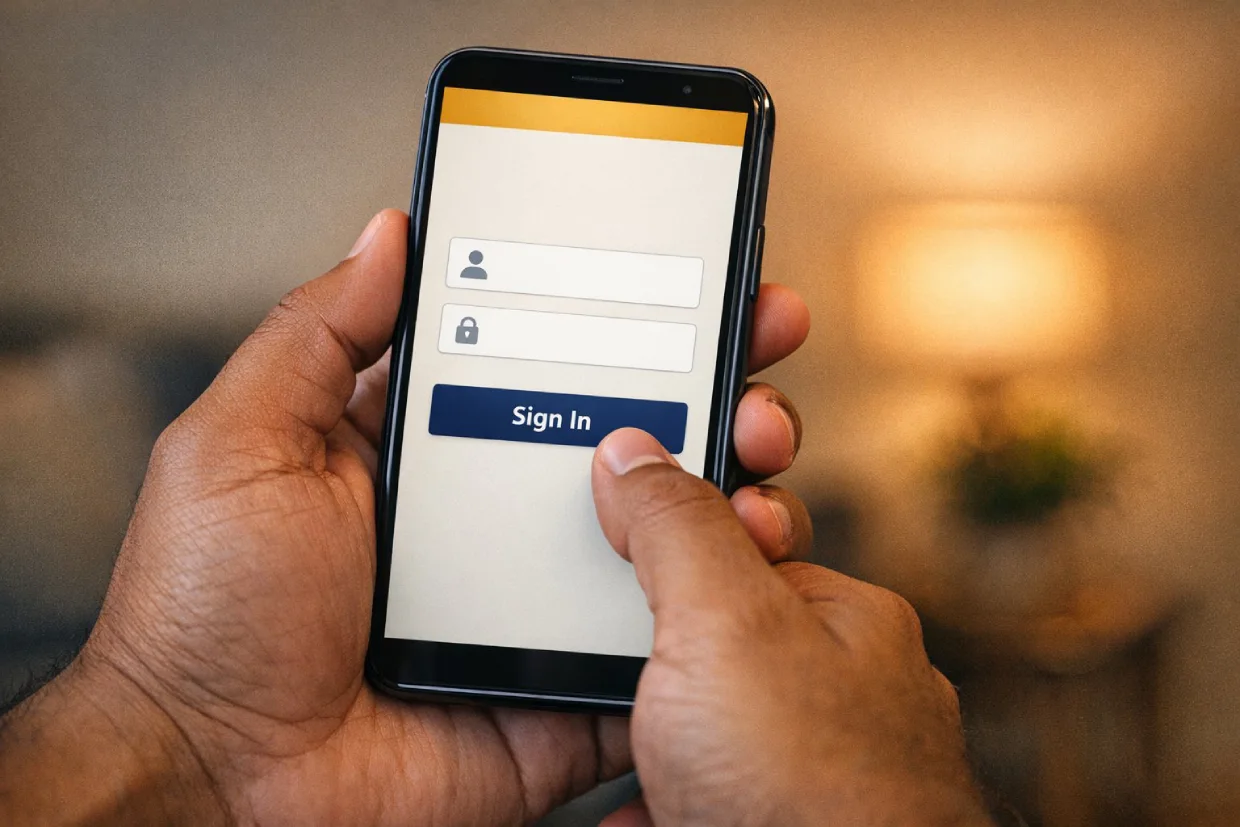
What the Laser247 Login Looks Like
The Laser247 login form is simple: username, password, Login button, Forgot Password link. No CAPTCHA on most logins, no email verification step, no social sign-in.
One credential set works everywhere. The same Laser247 login signs you into the browser version of the platform and the Laser247 App. Sessions are independent, so being logged in on your phone does not log you out on your laptop.
Sessions stay open by default. A normal Laser247 login persists until you log out, your token expires, or you sign in from a new device that triggers a security review. Browser sessions usually expire after a longer idle period than app sessions. Active sessions can be reviewed in your account settings, and any session you do not recognise can be ended from there with a single tap.
The login is your account, not a second account. There is no separate “login account” alongside your betting account. The same credentials cover bets, balance, deposits, withdrawals, and support, which is the reason a strong unique password matters here as much as it would on a banking app.
Laser247 Login on Browser
- Open the Laser247 site in your browser.
- Tap the Login button in the top-right corner.
- Enter your username and password as set by the agent or as you changed them.
- Tap Login. First-time logins prompt you to change the temporary password before you can place a bet.
- Land on your dashboard. Balance, recent bets, and the cricket section sit at the top.
Browser sessions stay live via a cookie unless you actively log out or clear the browser’s cookies. If you sign in on a public or shared computer, log out before walking away. Both steps matter, not just closing the tab.
Laser247 Login on the App
- Open the Laser247 App on your Android device.
- Enter your username and password at the splash screen.
- Tap Sign In.
- Enable biometric login if prompted. Face unlock or fingerprint replaces the password on every subsequent login.
- Land on the home view of your default sport.
App login persists across phone restarts unless you sign out or your phone clears app data. The Laser247 login on the app asks for biometric reauthentication occasionally for security, not on every open.
Laser247 Login Methods Compared
Two surfaces, three login flows. Pick the one that fits your situation.
| Method | Where It Works | Speed | Best For |
|---|---|---|---|
| Username + password (browser) | Any device with a browser | Manual entry | Desktops, laptops, public computers |
| Username + password (app) | Android app | Manual entry first time | Long-term phone users |
| Biometric (app) | Android app, after setup | Instant | Frequent app users |
The app plus biometric combination is the fastest path for daily users. Browser plus manual login is the cleanest path for occasional sessions on a different device.
Setting and Changing Your Laser247 Password
The temporary password from the agent is exactly that: temporary. Change it on first login, and review it every few months after that.
Length over complexity. A 14-character password you can remember beats an 8-character random string you have to write down. Length is the dimension that matters most against brute-force attempts.
Unique to this account. Reusing passwords means a breach somewhere else exposes your betting account here. A unique password isolates the risk.
Avoid obvious patterns. Birthdays, names of family members, repeated digits, and keyboard rows like “qwerty1234” all lose to dictionary attacks. A short phrase you would never share works better than any of those. Something like “RedBuffaloFridayNight” reads as nonsense to an attacker but stays memorable to you.
Use a password manager if you have many accounts. Browsers can save passwords, but a dedicated manager (1Password, Bitwarden, KeePass) handles password generation, autofill, and cross-device sync more securely. The autofill function is also a phishing safety check, since the manager only fills credentials on the exact saved URL.
How to change it. Sign in, open account settings, find the password section, enter the current password, set the new one, confirm. The change is instant and you stay logged in on your current session. Other sessions on other devices may need to log in again with the new password.
Recovering a Forgotten Laser247 Login
Three scenarios, three paths.
Forgot the Password
Use the Forgot Password link on the login page. The recovery flow goes through your registered WhatsApp number, which sends a verification code or a reset link in the chat thread you used at signup.
Forgot the Username
Message the WhatsApp agent with your registered mobile number. Username recovery goes through the same chat that created the account.
Lost Access to the WhatsApp Number
The hardest case. Recovery requires identity verification with the agent before any reset is processed. Without access to the registered WhatsApp number, expect the process to take longer than a normal reset.
The single piece of advice that prevents most lost-account stories: keep the WhatsApp number that opened your account active for as long as you have an account.
Two-Factor and Biometric Laser247 Login

Two extra layers worth setting up.
Biometric login on the app uses your phone’s fingerprint sensor or face unlock. Nothing leaves your phone. Android verifies the biometric locally and the app trusts the result. Setting this up reduces password entry to once at first install and then almost never.
Two-factor authentication on the browser sends a verification code through your WhatsApp thread for any new browser session. The code is requested only on unfamiliar devices, not on every login. Enabling 2FA means a stolen password alone is not enough to access your account.
Both can be enabled at once. Biometric on the app, 2FA on the browser, your Laser247 login is now resistant to the most common attack vectors: a leaked password and a forgotten public-computer session.
Laser247 Login Security Best Practices
Money accounts demand more care than entertainment accounts.
Log out before you walk away from a shared device. Public computers, work computers, family computers. Log out of your Laser247 login, then close the browser. Both steps.
Never enter your Laser247 password into a page sent through SMS or unsolicited message. Phishing pages mimicking the real login are a recurring scam. Cloudflare’s explanation of phishing attacks covers how these pages work and why even careful users get caught. Always navigate to the platform from a bookmark or by typing the address yourself.
Treat password manager autofill as a safety check. A password manager that does not autofill your Laser247 password on a page is telling you the URL does not match the saved one. Trust the manager. Look at the URL twice before typing anything.
Review your active sessions periodically. Account settings shows every device currently signed in. Sign out any session you do not recognise, immediately.
Update your password after public Wi-Fi use. Hotel networks, airports, cafes. Even with HTTPS in place, the safer move after a session on suspect Wi-Fi is a password change.
Common Laser247 Login Problems
Most login failures resolve in under a minute. The recurring ones with the right fix.
| Problem | What Caused It | What to Do |
|---|---|---|
| “Wrong password” on first attempt | Typed wrong, or wrong username | Double-check both, try again carefully |
| “Wrong password” after multiple attempts | Account temporarily locked | Wait 15 minutes, then use Forgot Password |
| “Account not found” | Typo in username, or wrong account | Verify username with agent on WhatsApp |
| Logged out automatically every few minutes | Cookie blocking or VPN session reset | Allow cookies for the site, disable VPN |
| App login fails after update | Cached session conflict | Clear app cache, log in again |
| Biometric login stops working | Phone biometric data changed | Re-enrol biometric in app settings |
| “Session expired” repeatedly | Network drops or restrictive WiFi | Switch to mobile data and retry |
| Login form does not load | Browser cache or extension blocking | Try incognito mode, then clear cache |
For Laser247 login issues that do not match the table, contact Customer Support with a screenshot of the error message. Most edge cases need only one round of troubleshooting in the chat to resolve.
Get Started with Your Laser247 Login
If you have not opened an account yet, Laser247 ID covers the signup side. Once your ID is created, the WhatsApp agent sends your username and temporary password in the same chat.
Sign in on browser or app, change the temporary password, set up biometric on the app if you use it daily, and your Laser247 login is ready.
Once you are in, the Deposit and Withdrawal Guide walks through funding the account so you can place your first bet.
Tap the Login button, enter your credentials, and the platform opens.
Laser247 Login FAQ
How do I log in to Laser247 for the first time?
Use the username and temporary password sent by the WhatsApp agent in the same chat that created your account. The first login prompts you to change the temporary password before you can place a real bet.